Hosted onhoraciohdev.dev.hyper.mediavia theHypermedia Protocol

Structure in Seed Hypermedia
Goals for this Structure Proposal

Knowledge Structure

Hypermedia sites should enable an expressive intellectual structure for creators. Good organization should be easy to create, but the responsibility for creating well-organized content ultimately lies with the creators.

Map to Presentation

The site and document structure should declare a framework for how content should be presented. It does not need to be pixel-perfect, but instead provide a guideline for client implementers so that content can be presented roughly in-line with the expectations of the creators.

Coherence and clarity of API

Site and document model should have well-defined terms, and the API should reflect the goals and principles described here.

Consistency

The Hypermedia API should be consistent throughout, when it comes to naming and design patterns.

Minimalist

Hypermedia Sites should avoid extra complexity, to reduce the implementation cost and to make it easier to learn.

Non-Goals

Changes/Operations API

This proposal describes the structure of the current state of a site. For now, the signed permanent data describes changes to the site+document model. These signed changes will be documented elsewhere.

Previous design, backwards compatibility, implementation path

Seed Hypermedia has an existing implementation with certain constraints. This proposal does not take any limitations from the existing system. Instead it is a clean approach and may make backwards-incompatible changes. If we decide that sites+documents should have this structure, we can decide what the migration strategy is. Or if we want to bend this proposal to the existing implementation

Incomplete Implementations Acceptable

Here we are focusing on the approach to the design, not on specific features. Some features described are very low-priority, and we won't ever need to implement them. The idea is to sketch our current feature requests into this model so we can figure out how they would be implemented if we do decided to build them.

A Document is the base of organizing knowledge. It is comparable to a single PDF or web page. A document describes what may appear within a single window at one time.

Content

The Document Content contains the full message that the authors are intending to share. It is saved inside the content field.

Attributes

A Document contains the following Attributes which are used to describe the Document, as well as some presentation preferences:

    Name

    Icon

    Width

Navigation

Every Document has a Document Navigation. By default, the Navigation will be the Navigation View of the Document Content. (Previously known as the outline).

The Document may have a navigation field defined, which will override the Content that is used to generate the Navigation. This allows authors to control how readers will go deeper into the content, and will probably contain Cards and Queries that expose Sub-Documents.

A Document Navigation can include an embed of the document itself, which allows an "outline" to appear in the Navigation UI, helping the reader jump around headings inside the document.

Theme

Values from the theme field are special because they affect the syle of Sub-Documents in addition to the document itself.

The Seed app will probably only allow theme customization from the Site Home, but the protocol theoretically supports the Theme on any document.

"theme": { "colors": {}, }


Example Snapshot

{ "name": "My Document", "icon": "ipfs://1234", "content": BlockNode[] "navigation": BlockNode[], "theme": {...} ...attributes }

Blocks

A Block is a single node of content, and it often contains text.

The Block Node is the fundamental building block for creating structures of content within a document. It contains a single Block as well as an ordered set of children BlockNodes. Generally, a BlockNode may contain any type of child blocks.

Generally, Blocks and Block Nodes form Content in the Hypermedia Structure

ID

Every Block has an ID that allows it to be referenced directly

Type

Specify one of the pre-defined Block Types

Text

A string field on the Block

Link

Some blocks such as Embeds make a reference to something else, and the common link attribute is used

Attributes

A Block can contain additional data known as Attributes to describe more details of how it can be used.

Text Blocks

Many Block types contain the text value. If a Block does, it may contain a list of Annotations to make the text more expressive.

Block Types

Text/Paragraph

Standard text in a Document

Heading

Provide structure to a Document. Used to organize a Document and Navigation

Image, Video, File

Multimedia Blocks. The text of these blocks is the "caption" of the media element

Code

Format a block of text as code, optionally specifying the language

Embed

An embed is a reference to another Document or Comment, with a view specified which changes the presentation. May refer to a whole Document, a Block or BlockNode within, or a Range of text.

The Embed Block has a view Attribute which specifies which type of embed it is:

Content Embed View

Show the full content that is referenced.

Card Embed View

A special block representation for another Document that appears inside

Navigation Embed View

Show the Navigation Structure of another document

Query

Look up the Sub-Documents of a Document in the Site, and present them as as cards or within the Navigation View of the document. Contains the following:

    URL, reference to the Site or Document to query

    Recursive

Feature

Visually emphasize this content with a full-width background. The text of this block is a type of Heading, and the Children are visually inside this background. The background may be a color or an image, and there may be an image associated with the Feature Block.

Button

Button Block shows a button with a link to the web or another Document

Activity

The Activity Block shows the comments, version history, and activity summary of Sub-Documents.

Metadata

Show the Document title, authors, and version history for the Document

Annotation Types

Bold, Italic, Underline, Code

Simple text styling attributes that may be applied to a range of text

Link

Specify a range of text to link to a web URL, or a Hypermedia URL (Document, Document Block, Comment)

Embed

This annotation applies to a single special character in the text which allows you to embed the title or portion of text from another document into this place of the text

The Client is the app or web software that is responsible for rendering the Hypermedia Structure.

The Body is the author-controlled area of a Site and Document. On the web Client, it takes up the whole window (matching the html <body>). In desktop Clients, it takes up the main view (under the app's title bar, right of the navigation sidebar, left of the panels, and above the app footer)

Here we define the Presentation: how Sites and Documents should be rendered by the Client inside the Body.

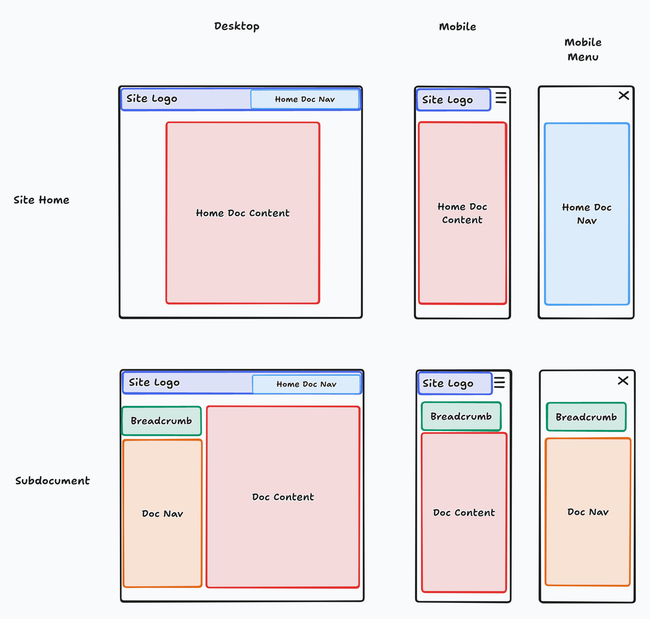
Visual summary of the suggested Presentation

Site Header

The Site Header is meant to show the reader what Site they are inside, and give access to the Site Navigation and other features that the Client provides, such as access to the mobile menu.

The Home Document may specify a layout for the header that the Client should respect, to enable different visual styles for the Header. For example, a layout for center-aligned Navigation under the Site Logo.

Site Logo

The Site Logo is determined by the attributes of the Home Document.

If the logo attribute is set, use the image from there.

Otherwise, the Site Logo is created by combining the name and icon of the Home Document.

Navigation

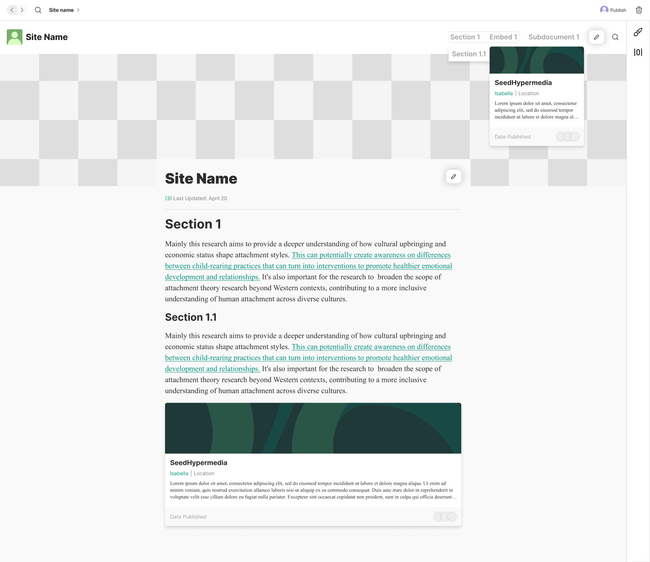
The Navigation Views of a Document should always be easily accessible while the Document is open. For a Site Home Document, it should appear in the Site Header (or be accessible from the Header, if there is not enough space). If space allows, the Navigation should be visible in the Sidebar.

Site Home

Breadcrumb

Shows the parent Documents and may give access to the Home Document

Note: The Breadcrumb may have different presentation styles— it does not have to take the form factor of traditional breadcrumbs (for example it may be a dropdown or a vertical list of parents) This would be decided by the Client and may be informed by Document Attributes.

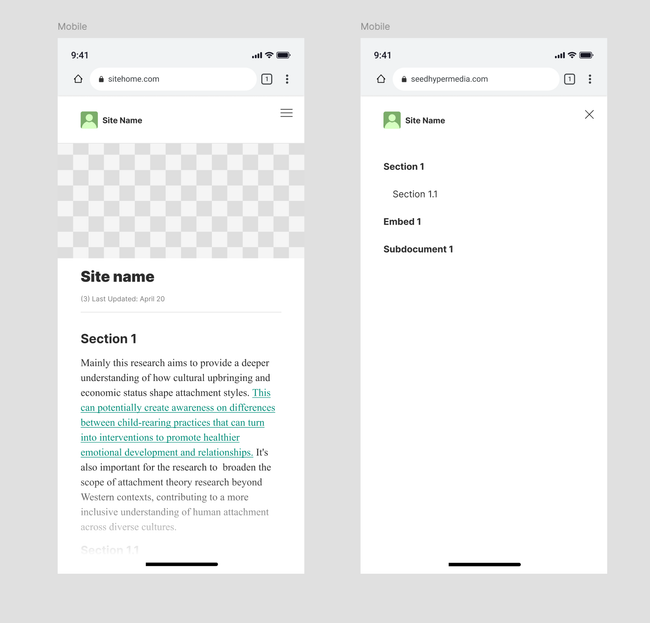
Site Home Mobile Breadcrumbs
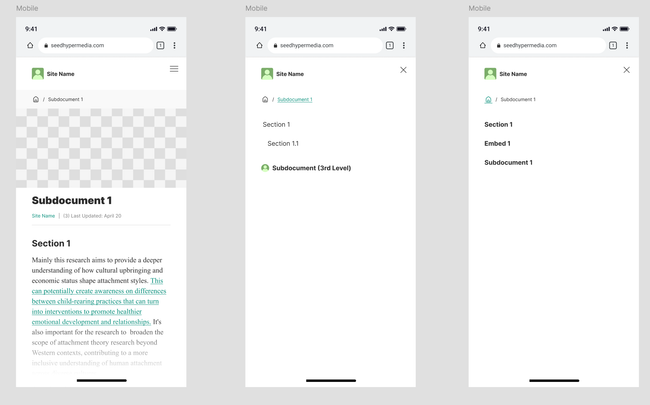
Subdocument Mobile Breadcrumbs

Mobile Support

To support phone-sized screens, a Client should give easy access to the Navigation of the document. To ease navigation across the site, the navigation should have its own Breadcrumb that helps the user access the Navigation of Parent Documents and the Site Home.

This strikes a balance of keeping the UI minimal and focused, while giving the reader easy access to navigate across the site.

Site with Outline Navigation

A document snapshot of a Home Document:

{ "name": "F1 Fans", "content": [ { "block": { "id": "block1", "type": "Heading", "text": "Teams", "style": "h1" }, "children": [ { "block": { "id": "block2", "type": "Heading", "text": "Ferrari" }, "children": [ { "block": { "id": "block3", "type": "Paragraph", "text": "Founded by Enzo Ferrari in 1929" } } ] }, { "block": { "id": "block2", "type": "Heading", "text": "Mercedes" }, "children": [ { "block": { "id": "block3", "type": "Paragraph", "text": "First raced in 1954" } } ] } ] } ] }

This Document will have the following Navigation structure. Because the navigation is not explicitly defined in the document, the nav is an Outline of the Document content:

    Teams

      Ferrari

      Mercedes

Site with Shared Sidebar

A Sub-Document may embed the navigation of a parent document. Imagine there is a document /teams/ferarri:

{ "name": "Ferrari", "content": [], "navigation": [ { "block": { "id": "block1", "type": "Heading", "text": "Drivers", "style": "h1" }, "children": [ { "block": { "id": "block2", "type": "Embed", "link": "hm://123/teams/ferrari/drivers/louis-hamilton", "view": "Card" } }, { "block": { "id": "block3", "type": "Embed", "link": "hm://123/teams/ferrari/drivers/charles-leclerc", "view": "Card" } } ] } ] }

This Document will have the navigation structure:

    Drivers

      Louis Hamilton

      Charles Leclerk

The driver document is located at /teams/ferrari/drivers/louis-hamilton:

{ "name": "Louis Hamilton", "content": [], "navigation": [ { "block": { "id": "block1", "type": "Embed", "link": "hm://123/teams/ferrari", "view": "Navigation" } } ] }

The navigation structure matches the drivers doc. When you click on "Louis Hamilton" from the drivers navigaion, the Louis page highlights and the navigation content stays the same.

Do you like what you are reading? Subscribe to receive updates.

Unsubscribe anytime